Sunday, January 1, 2012

Free music online


1. iLike is a social music site which allows you to discover new music with a little help from your friends. Free downloads and the buddy system, what could be better?

2. Altsounds has a lot of streaming content, but there are quite a few quality mp3 downloads mixed in, including bands like Anberlin, Panic at the Disco, 10 Years, and Underoath.

3. bt.etree.org tracks live recording torrents of “bootleg friendly” bands. You’ll be able to find all kinds of FLAC downloads from performers like Ben Harper, Jerry Garcia, Blues Traveler, Trey Anastasio (I smell a trend here, or at least some patchouli), Radiohead, Primus, and even Tenacious D.

4. Legaltorrents is still in its early stages, but there are still a number of music and audio books available from their site.

5. Stereogum has been offering free, legal mp3s since 2006. They’re all still available, along with zip and torrent file archives of previous months. The Gum Mix streams music to you while you browse, and all the tracks it plays can be downloaded.

6. SXSW is a good news/bad news situation. The bad news is, they only have one torrent file for download. The good news? It contains over 700 mp3s of bands that performed in 2007 for a whopping total of 3.1 gigs of audio. Change the year in the subdomain to get the 2006 and 2005 downloads.

7. Unsigned Band Web is a palce for, well, unsigned bands to share their music and get noticed. Just about every genre you can imagine is offered here, and they maintain charts to show you what’s hot. Apparently electronica is hot. Maybe I’ll stick to genre browsing. Bottom line: tons of free mp3s to download.

8. Soundclick’s music page will hook you up with a ton of downloads, including more unsigned acts - like my favorite new addiction: German hip hop. I blame my scarf-wearing co-worker.

9. Honc “if you love music. The site isn’t much to look at, but there’s still more undiscovered goodness to be found here.

10. Garage Band is also worth checking out for more diamonds in the rough. Rub it in your friends’ faces that you “heard them first.”

11. Indie Rock Cafe offers more up-ad-coming music, blog style. There’s no centralized download page, so you’ll find the tracks sprinkled around the blog post.

12. DMusic has been offering indie musicians a chance to be heard since 1998. Top 20 charts are maintained for each of the 20+ main genres (which are broken down into several sub-genres as well).

13. Fuzz offers - oh crap - a mixtape feature. The interface is cool as hell, and there’s a ton of great, free music to discover on the site.

14. iCompositions is dedicated to music created with Mac’s Garage Band software. You’ll need to register in order to download songs.

15. The Internet Archive has a massive audio section, including audio books as well as music. Be sure to check out the open source section, with over 150,000 Creative Commons licensed items.

16. Jamendo rocks for one big reason: they offer both direct downloads and a torrent tracker. 555 pages multiplied by 20 items per page equals a veritable crapload of music. You’ll find lots of international music too, from exotic places like Brazil and er…Canada.

17. Peoplesound is similar to Jamendo, but you’ll find some major label artist offerings. Registration is required to download, and you’ll have to browse the genres/artists to find the mp3 files, but they have plenty up for grabs.

18. Epitonic is “your source for cutting edge music.” You’ll find tracks by artists like The Strokes, Carl Cox, Pavement, Peaches, Guided by Voices, and Yo La Tengo.

19. I love me some punk music, and fortunately punk labels love to share their music. Fat Wreck Chords, Hellcat Records, Subpop, and Epitaph all have tons, and usually offer two or three fulls songs from a CD. Oi!

20. Stereokiller has even more punk/hardcore/metal goodness for you. According to the guy that runs the site, it’s “better than damn MySpace.” Well, no argument there.

21. Anti’s slogan is “real artists creating great recordings on their own terms.” Downloads galore from guys like Michael Franti and Spearhead, Greg Graffin, Nick Cave, and Billy Bragg.

22. 3hive’s bloggers pass on links to some excellent free mp3s on their site. It’s got a nice, personal feel to it, though there’s not the tidal wave of music you’ll find at some other on this list.

23. itsfreedownloads is worth a bookmark for iTunes users. It’s a site that keeps tabs on the weekly freebies in the iTunes store. You may get sick of looking at all the ads, but the free music will help soften the annoyance.

24. mp3.com has a pretty huge collection of free tunes as well, with offerings from almost 1,400 artists. Most can be both streamed and downloaded.

25. Purevolume.com is loaded with streaming music, but there are plenty of downloads as well. Click the search link, then search or browse to “discover new music.” It’s the quickest way to the freebies.

26. Music.download.com. What can I say, they’ve got a ton of MP3s. I’m not much of a CNET fan, but free is free.

27. Last.FM has free downloads, too. It’s not just for streaming.

28. Stage.FM used to be Audiri, and still offers streaming and downloads for independent artists.

29. iSound offers another large catalog. Head to the mp3 page for free downloads, as some artists only offer streaming - including Our Lady Peace frontman Rayne Maida, who I was disappointed to see had no downloads.

30. we7 is offering all kinds of free tunes - if you’re ok with a brief advertisement being appended to the track. They’re legal, they’re free, and you’ll find bands that you’d normally have to pay for to get full mp3s.

31. SpiralFrog is doing the ad-supported thing, too (if you can get to it).

32. Blentwell is “an ongoing document of the evolution of blended music.” Tons and tons of DJ mixes, categorized by genre.

33. MTV offers a new group of about a dozen downloads on a somewhat regular basis. A drop in the bucket, but still free.

34. Anyone with a toddler or three at home will apprciate Free Children’s Music. You’ll find tons of great, kid friendly tunes there.

35. Classic Cat maintains a massive listing of free, classical mp3s available on the internet. Files aren’t hosted there, but it’s an easier way to find works by Bach and Beethoven than searching yourself.

36. At Spinner (AOL Music), our chums have been giving a free MP3 away every day for the past two+ years.

Romania: musicmall.ro, Moose.ro, Eok.ro

Online books


1. RomaniaEuropa.com
2. VirtualLitera
3. DozaZilnica.ro
4. e-scoala.ro
5. Liternet.ro
6. Carti.x6.ro
7. Biblior.net
9. Agonia.ro
10. Poezie.ro
11. Educativ.org‭
12. JurnalulRaului.go.ro‭

Scribd.com ‬bibliotheq.net. historion.net.‭ explorion.net.‭ www.gutenberg.org

How to take a screenshot or picture of what’s on your computer screen


There are a couple of reasons you might want to take a screenshot (a.k.a., screen capture or screen grab) of your desktop or an application window. One of the most common is to send the image to tech support to show a problem you’re experiencing. Whatever your motive, here’s how to take a screenshot on both Windows and Mac.

Take a Screenshot on Windows

Look for thePrint Screen key on your keyboard, which might be labeled PrtScn.
  • To capture the entire screen (everything you see on the screen, including all open windows), press the PrtScn button. This screenshot will be placed in your clipboard.
  • Alternatively, to capture just the active or foremost window, press Alt+PrtScn.
  • Next, open an image editing program like Microsoft Paint and either go to the Edit menu then select Paste or, for a faster method, hit Ctrl+V to paste the image into the program.
  • Go to the File menu then choose Save As and save the image to a folder so you can later attach it to an email (or support request).

Using the Snipping Tool

  • Click Start, then All Programs, then Accessories, and then Snipping Tool.
  • Click the down arrow next to the New button to select your snipping type.
  • Then use your mouse to select the area of your screen or window you want to capture.
  • You can also use the Snipping Tool to capture a menu option, such as a drop-down that normally disappears when your mouse button is released or the Start menu image you see at left. To do this, press ESC after opening the Snipping tool, then go to or activate the menu you want to capture. Finally, press Ctrl+PrtScn to capture the menu.
  • To draw over or highlight parts of the screenshot, click the pen or highlighter buttons in the menu.
Once you’ve got your screenshot you can save it, email or copy it for pasting into another application. Source: lifehacker.com

Some thoughts on professional photographs


The following excerpts are from Thoughts on Translation:
Let’s say that you want to hire a professional services provider: maybe a business accountant, a copyright attorney, a web designer or a marketing consultant. You’re clicking through that person’s website, and on their About page, you see a photograph. Great! It’s always helpful to get a visual image of the person you’re thinking of working with. But then you notice that the person’s photograph is clearly from 20+ years ago, or was obviously taken in a drugstore photo booth, or features them and their pet ferret, or you can’t really tell what the person looks like because they’re facing away from the camera and their hair is in their eyes. Problem? Maybe! Let’s ponder the issue of professional photographs for a second.
(…) Why should you consider a professional photograph?
  • It shows that you’re willing to invest in your business. I am very frugal. I don’t own a clothes dryer and I wash Ziploc bags. But when someone hands me a business card with “Get your free business cards at…” printed on the back, my immediate reaction is that this person is not even willing to invest $25 in their business in order to get real cards. Ditto with the professional photograph: it shows that you care.
  • It conveys an impression of you as a person. Let’s face it: working with a freelancer is a very personal relationship. And if people don’t have a positive impression of you, they are less likely to work with you. A professional photograph can help establish you as approachable, personable, likable and other qualities that are desirable in a business associate.
  • It’s what other people do. I hate to play the “everyone else is doing it” card, but there’s some truth to this. If you consider yourself on par with other consultant-type service providers, your marketing materials need to be at that level.

The future for translators looks bright...


Seven predictions and a survey presented at the 19th FIT Conference, San Francisco, August 2011
Translators in the 21st century find themselves in a difficult position.On the one hand there is a steadily growing demand for translation as a result of increasing global trade and communication generally. On the other hand it becomes harder and harder for the professional translator to meet this demand. Delivery times grow shorter and prices go down.
Technology is often thought of as an answer to this kind of pressure. But along with the technology come many new challenges. It is simply impossible for a translator who is trained in the language arts to keep up with the technology. And if she tries, frustration grows when she finds out that translation tools do not really work together very well. (See report Individual translators and data exchange standards.)
Then there are the economics. As the owner of a small business, translators must weigh the return-on-investment on time and money very carefully. Tools do not come for free and every new tool takes time to be mastered. What if these same tools – or machine translation – one day take over the job of human translators, as many of our colleagues fear. You might prefer to live on another planet, or at least work in another profession.
For the 19th FIT Conference held in San Francisco, 1-4 August 2011, TAUS ran a survey among the translators attending the conference. This article references a summary of the survey, and then makes seven predictions as a follow up to the keynote I gave to close the FIT event. The conclusion: the future for translators looks bright, but they will have to reinvent the profession first.

Crisis. What crisis?

In the aftermath of the 2008 financial crisis, sixty-four (37%) of the survey respondents reported that translation rates continue to be under pressure. There seems to be a slight decline in translation volume, while the palette of languages seems to be broadening slightly. Thirty-seven respondents (21%) see business continuing as usual, while respectively 12% and 10% of them see opportunities for automation and innovation in the currently unstable market.
Which of the following technologies and/or innovations will translators apply in the coming two years? Sixty percent of the respondents say ‘no’ to machine translation, while 19% are already using it, and 21% expect they will use MT within the next two years. The main concerns about MT are the poor quality of MT output (76%) and the poor quality of source documents (54%). Those who look at MT on the bright side see cost reduction as the greatest benefit (39%) and the possibility of real-time delivery of translation as a secondary benefit (35%).
A majority of the respondents are interested in sharing translation memories and terminology: 35% already do so and 39% expect to be sharing language data within two years. However, another much larger poll by ProZ.com of 1,000 translators indicates that 49% would not consider sharing their translation memories. Translators are concerned about ownership of TMs and their relevance to the job at hand. But they do see the benefits of terminology searches of massive TM resources and the productivity gains these bring.
Click here for a summary of the full survey.

The future looks bright, but …

… change is the name of the game. And reinventing the profession is extremely hard if your days are spent just getting the jobs done and trying to make a modest living. Yet, for the first time in the history of the planet, translation is a really strategic activity. Thanks to Google Translate, Yahoo! Babelfish and Microsoft Bing, every soul on our planet now knows what translation means.
Hundreds of millions people press the translate button every day which makes them realize how difficult it is to get a good, accurate translation. As professionals we must realize that our community is far too small (just 250,000 or so professional translators in a world of 6,000 languages?) to serve the needs of seven billion citizens.
We are only scratching the surface. As professional translators – and as a global translation industry – our mission is to help the world communicate better. (That sounds better than being a lawyer or a banker, right?) For we now have the means to deliver on that mission. We simply need to find a way to do it properly. Here is how TAUS sees the future in seven predictions.
1. MT is here to stay
Let’s face it: machine translation will never be perfect. Every speaker of a language has the right to introduce new words, give existing words new meanings and change the spelling and grammar of his language. The point is: that’s what people do every day – witness Twitter or online chat, popular songs or political revolutions.
Computers just cannot keep up with these evolving nuances and associations in hundreds of domains and linguaspheres created by speakers of just one language. Yet, MT for all its mechanical faults is here to stay. Why? For the simple reason that we humans just cannot deliver enough translations in real-time.
Two other factors will also influence the rapid growth of MT. First, MT is getting better and better as we keep feeding the engines with human translated sentences to improve their domain knowledge and we keep tweaking the rules to improve the word order and forms. Second, a new generation of users are growing up, they are more forgiving, and open to self-service. Users may even step in and offer better terminology and forms of expression as a way to help others and themselves.
MT is here to stay and will be called “translation”. It will be embedded on every website, mobile and car app. Translation will become a utility, just like electricity, water and Internet: a basic resource and a basic human right.
2. High-quality translation will gain recognition
As machine translation becomes so universally available, it is clear that there isn’t just one single translation of a text that fits all. To differentiate their product offerings and appeal to specific customer groups, buyers will recognize the need for high-quality translation - call it personalization, transcreation or hyper-localization. This means that, machines will not replace human translators.
On the contrary, non-perfect MT output will stimulate the need for high-quality translation in a broad range of communication situations. The challenge we face as an industry is to agree on the criteria and the measurements for the level of quality that is needed for each situation. Sometimes MT is simply not an option. Sometimes MT is the only option.
3. Post-editing will come and go
Information travels fast and loses its value quickly. This is especially true for news, entertainment, online shopping and customer support content, but increasingly also for business-to-business and government information.
There is a fundamental shift from static “cast in stone” content to dynamic “on the fly” content. Instead of one or two releases per year, companies are shipping product updates on a weekly if not daily basis. And consumers, citizens and patients are increasingly sharing their reviews, tips and tricks in user blogs and social media in almost real time. Any chunk of information may be relevant and interesting to someone somewhere.
The key attraction of MT in this new information age is that it can deliver real-time translation to meet these changes. Potential cost reduction is only a secondary benefit. And the widespread fear that all human translators will soon be downgraded to mere post-editors of MT output is ungrounded.
Why? Well, in the next few years post-editing will grow quickly, but then we will see it diminish. But if there is no time for translation, then there is time for post-editing either. Real-time is real-time, right? In any case, MT technology will get better, using machine intelligence to learn from its mistakes and not make them again.
Translators who choose to work with computers will customize and personalize MT engines to specific tasks, customers and domains, rather than do stupid, repetitive error fixing. They will be promoted to ‘language quality advisors’ if you like.
4. Translators win when supply chains get shorter
More so than most other industries, the translation industry consists of a complex cascade of suppliers. There may be three or four levels between the translator and the end-user: translation agency, global multi-language vendor, corporate translation department and often an external quality reviewer or subject matter expert.
All these functions add a cost to translation but are they adding any real value in proportion to that cost? Tasks are often replicated and functions overlap. Disintermediation (i.e., ‘cutting out the middleman’) hasn’t really bitten into the translation industry yet as it has in the travel and banking industries, for example. But change is on the way, under pressure from the overarching need to translate more words into more languages.
Corporate and government buyers will analyze their supply chains to reduce their costs, and functions such as project management, quality assurance, vendor selection and translation memory management, will probably be streamlined, simplified or shared. Yet there will be no question about the critical role of the translator at the end of the chain.
Even though MT will be used to translate content streams requiring real-time translation, there will always be a need for a professional translator to tell good from bad language in the communication process.
5. The list of languages keeps growing
As global business is shifting from an export mentality to a world of open trading on a flat playing field, the nature of publishing and communications is also changing fundamentally.
In the old 20th century model the global manufacturer and publisher used to push information out to the world. They would select their markets, pick their most important language communities and translate their own instructions for use, brochures and web pages.
They would probably start with four to six languages and gradually add more languages if the markets prove to be worthwhile. In the new 21st century model, companies are realizing that their customers are not sitting there waiting for the information to be pushed out by manufacturers and publishers.
They are browsing the Internet and pulling down information wherever they find it. And if they can’t find it, they write their own reviews and comments that yet others may then translate to help their local peers. In the old world, content was owned by publishers; in the new world content is shared and earned.
In this radically changing environment, the range of languages for content is constantly growing. Successful global companies need to facilitate communications in a hundred-or more languages instead of the old standard set of seven or at the most twenty.
Translators in many more countries will benefit from this “democratization” of globalization.
6. Sharing data becomes the norm
Our concept of a ‘translation memory’ is about to change. Translation memories and translation memory tools have long been cultivated as our proprietary productivity weapon, perhaps offering a competitive edge in an environment where one fifth of professional translators (according to a recent ProZ.om poll) still don’t even use translation memories.
Yet, we have now reached the limits of potential productivity gains, and, let’s face it, translation memory technology itself – in its current and mostly used form – is no longer state-of-the-art. Most translation memory tools are stuck in a technology time warp and cannot leverage the power of corpus linguistics (see article The Future is Corpus Linguistics). A new generation of translation productivity tools will emerge that allow us to leverage any length of strings of text from very large corpora of translations.
These new tools will in many respects be using features and components that emerged from statistical MT technology, except for the fact that they leave the professional translator in full control of the processes. They will unleash the translational power hidden inside very large corpora of text. They will allow us to do semantic searches and clustering, synonym identification, automatic cleaning and correction of language data, sentiment analyses and predictive translations.
In anticipation of this next generation translation technology, many translators and companies have already started consolidating their translation memory data into large, searchable repositories. Some (more than you think) are even harvesting these language data from the Internet, meaning that they have computers crawling translated web sites, aligning the sentences from these web sites, and reconstructing translation memory files.
Call them pirates if you like. But as we have seen in other industries, they are the drivers of innovation. We at TAUS truly believe that it is this kind of innovation that is needed to unleash the power of the translation industry and enable it to prosper.
The TAUS Data Association was established in 2008 as a legal, not-for-profit member-driven organization aimed at hosting and sharing translation memories for all stakeholders in the global translation industry. The publicly accessible and searchable database already contains four billion words of high-quality translation data in 350-plus language pairs.
7. Translation becomes a business of choices
The future of translation either looks bright or gloomy: it depends on whether you want to change, reinvent yourself and adapt. Admittedly, this is not an easy choice. Nor is there a lot of time to consider all the options, but at least translators now have the luxury of choosing. In the past, you became a translator and you were in it for life. Unless of course you became a literary translator, in which case none of the above applies.
Today, you can choose to be a ‘boutique’ translator, specializing in a domain and providing hyper-localization or transcreation services. In this case, you will drift away from the original concept of a translator once you start specializing in your domain. You may be asked to create local content instead of translating text written for a different culture.
You may be asked to do brand checking for new product names. Your job title may change to ‘language consultant’ or ‘communications adviser’. If what you like is linguistics and computers, you may choose to become a specialist in training domain- and customer-specific MT engines, or in translation optimization, or in new functions such as language data cleaning, data selection on the basis of semantic search, search engine optimization, or sentiment and cultural analysis using customer feedback data.
The availability of language data in so many languages will open a much larger range of choices for specialization and innovation. And yes, you can also opt for post-editing machine translation output. Not so much fun if it is not your first choice, but in many ways this option is similar to the first wave of automation our profession experienced in the 1980s with the arrival of translation memory tools.
The good news now, is that the MT engines will soon learn from the corrections made by post-editors, so you will not have to make the same corrections again and again. And translators (or whatever their new title might be) will become much less solitary and grow closer to their colleagues and end customers.
Collaborative networks will bring language workers together. And buyers of translation and language-related services will eliminate one or two handovers in the supply chain and be able to connect directly with you.
Translation may, in many ways, become a commodity and a utility but that does not spell the end of the profession. On the contrary, it will stimulate the need for differentiation, specialization and value added services. It is up to the world’s translators to rise to the challenge, and open up to these changes, and reinvent their future. Source: http://www.translationautomation.com

Top Web Conferencing Software for Linux


In the age of globalization, working with people from different parts of the world is common for many industries. Employees often have to travel long distances, which are not only hectic, but also costly for the company. Thanks to the fantastic state of the current economy, companies can no longer afford to spend extra money on travel expenses and accommodation. Furthermore, since travel often involves shifting between different timezones, employees are jet lagged and they aren’t able to perform at their fullest potential. And finally, there’s the environmental crisis, which is forcing more and more companies to go green and to cut out any unnecessary activities that may affect the environment, which obviously involves travel too.

So, what’s the solution to this? Should we stop globalizing? The answer is No. Thanks to the marvelous advancement in modern computing, people from different parts of the world can now communicate without even leaving their own office. The technology I’m talking about is web conferencing. Web conferencing allows you to hold meetings, seminars (called webinars), annotate whiteboards, training events, lectures and more using the power of the Internet.

To hold a web conference at your own office, you’ll need decent web conferencing software. If you’re looking to buy/ download one, there are plenty of options out there. However, if you’re on Linux, your choices are a bit limited. Don’t worry though, read on as we cover the best web conferencing software out there for Linux.


OpenMeetings
OpenMeetings is an open source web conferencing application that allows you to instantly set up a conference on the web. This browser-based tool lets you use your webcam and microphone to hold meetings over the Internet. Other features include the ability to share documents on a whiteboard as well as screen sharing. If you need to review your meetings, you can also record those using OpenMeetings. Licensed under EPL, OpenMeetings is free to download and install on a hosted server.

FastViewer Confered
Here’s another propriety yet feature-laden web conferencing tool that works on Linux. FastViewer Confered offers great features like web collaboration, online training sessions, encrypted communication, mobile device support and more. Furthermore, the software also allows users to record meetings. One advantage that FastViewer has over other web conferencing software is that it allows AES 256-bit coded encrypted communication. FastViewer is proprietary and works on Linux in viewer-only mode.


Adobe Connect
Adobe Connect is Adobe’s web conferencing software that runs across almost all popular platforms. Despite being entirely Flash-based, Adobe Connect comes with an impressive set of features, which include: unlimited and customizable meeting rooms, breakout sessions within a meeting, VoIP, Video conferencing, polling, notes, chat and whiteboard. Adobe Connect runs on Windows, Mac OS X, Linux, Solaris, and mobile. For Linux, the presenter/host has to be an Ubuntu 10 (or above) machine. The attendees on the other hand, can choose between Ubuntu, RHEL or Novell SUSE. Another important and annoying requirement is that the computers need to have Adobe Flash player 10.1 or higher. Even though it’s proprietary and Flash-based, Adobe Connect deserves a worthy mention on this list simply because of the impressive features it comes with.

WebHuddle
WebHuddle is a Java-based cross-platform web conferencing application. The open source web application runs on any Java-based computer and transfers data encrypted by HTTPS. During installation, the client applet which is about 75 to 175 KB makes sure that it takes almost no space at all. Then, web conferencing can be started using the easy to use web-based tool. With a conveniently low set of requirements, WebHuddle makes it easy and economical for small businesses to carry out web conferencing. Since the tool is in beta, it is free to install and try out. Once out of beta, the company might charge for the service, though the model still remains open source.


Zoho Meeting
Zoho Meeting is a web-conferencing service from Zoho, the company that develops popular cloud-based office solutions. The application allows participants to see the screen of the presenter by using ActiveX, Flash or Java. A unique thing about Zoho Meeting is its Embed feature that allows corporate users to embed meetings into their webpage. For those concerned about security, Zoho encrypts all data that is transferred. Though Zoho Meeting works on Linux, its only limitation is that the presenter should be using a Windows computer. The service starts at $12 per 5 participants. The site also offers users to watch a free live demo before buying the service. Source: http://www.junauza.com

Speaking more than one language may slow the aging process in the mind


Children who speak a second or third language may have an unexpected advantage later in life, a new Tel Aviv University study has found. Knowing and speaking many languages may protect the brain against the effects of aging.
Dr. Gitit Kavé, a clinical neuro-psychologist from the Herczeg Institute on Aging at Tel Aviv University, together with her colleagues Nitza Eyal, Aviva Shorek, and Jiska Cohen-Manfield, discovered recently that senior citizens who speak more languages test for better cognitive functioning. The results of her study were published in the journal Psychology and Aging.
However, Kavé says that one should approach these findings with caution. “There is no sure-fire recipe for avoiding the pitfalls of mental aging. But using a second or third language may help prolong the good years,” she advises.
Exercising the Brain
A person who speaks more languages is likely to be more clear-minded at an older age, she says, in effect “exercising” his or her brain more than those who are monolingual. Languages may create new links in the brain, contributing to this strengthening effect.
The research was based on a survey taken in 1989 on people between the ages of 75 and 95. Each person was asked how many languages he or she knew, what his or her mother tongue was, and which language he or she spoke best. The researchers compared bilingual speakers to tri- and multilingual speakers.
Analyzing the results, the researchers found that the more languages a person spoke, the better his or her cognitive state was. A person’s level of education was also strongly associated with cognitive state, but the number of languages contributed to the prediction of cognitive fitness beyond the effect of education alone.
A Matter of Words, Not Degrees
Although the easiest way to explain the findings was to point out the relationship between higher education and number of languages, this was not the whole story. In fact, Dr. Kavé says, “We found that more languages were most significantly correlated with cognitive state in those people who had no education at all.” Source: proz.com

10 rules for writing numbers and numerals


How do you express numbers in your writing? When do you use figures (digits) and when do you write out the number in words (letters)? That is, when do you write 9 and when do you write nine?
1. Number versus numeral. A number is an abstract concept while a numeral is a symbol used to express that number. “Three,” “3″ and “III” are all symbols used to express the same number (or the concept of “threeness”). One could say that the difference between a number and its numerals is like the difference between a person and her name.
2. Spell small numbers out. The small numbers, such as whole numbers smaller than ten, should be spelled out. That’s one rule you can count on. If you don’t spell numbers out it will look like you’re sending an instant message, and you want to be more formal than that in your writing.
3. No other standard rule: Experts don’t always agree on other rules. Two-word numbers should be expressed in figures. That is, they say you should write outtwelve or twenty. But not 24.
4. Using the comma. In English, the comma is used as a thousands separator (and the period as a decimal separator), to make large numbers easier to read.
5. Don’t start a sentence with a numeral. Make it “Fourscore and seven years ago,” not “4 score and 7 years ago.”
6. Centuries and decades should be spelled out. Use the Eighties ornineteenth century.
7. Percentages and recipes. With everyday writing and recipes you can use digits, like “4% of the children” or “Add 2 cups of brown rice.”
8. If the number is rounded or estimated, spell it out. Rounded numbers over a million are written as a numeral plus a word.
9. Two numbers next to each other. It can be confusing if you write “7 13-year-olds”, so write one of them as a numeral, like “seven 13-year-olds”. Pick the number that has the fewest letters.
10. Ordinal numbers and consistency. Don’t say “He was my 1st true love,” but rather “He was my first true love.” Source: proz.com

Good proofreaders and bad proofreaders


Your translation often needs to be checked to ensure its good quality. A person who checks a translation done by someone else can be called a reviewer, an editor, a proofreader or simply a checker. In this article, by the term ‘proofreader’ I mean the one who is usually hired by a translation company to check a translation against the source text for accuracy, completeness, linguistic and stylistic appropriateness, grammar, and spelling, although I am aware that some experts in our field may contend that a proofreader is only expected to check the spelling, grammar and style of the target document while an editor is expected to do more.
In some cases translations are checked by experienced and professional proofreaders. However in other cases, the work is corrected by bad and unfair proofreaders. These proofreaders often waste the time of the project manager, of the translator and even of themselves. They also bring about unpleasant feelings for both translator and the project manager.
Correcting approach
The job of a proofreader is to correct a translation, but good proofreaders and bad proofreaders have different approaches to doing it. Except spelling or typo issues that require immediate changes, a good proofreader will hesitate to change anything until he is sure that the change will serve a purpose, such as help clarify a certain meaning, fit the client’s style sheet or terminology, avoid misunderstandings or enhance the naturalness of the message. A bad proofreader usually hurries to change anything that he thinks does not match his own stylistic preference. Many bad proofreaders even tend to rewrite everything in their own words, falsely believing the more changes they make, the more competence they can show, at least, to a project manager. While a good proofreader tends to focus on errors that can obfuscate the clarity of meaning or result in misunderstanding of a text, a bad proofreader often concentrates on the minor details. Needless to say, a good proofreader often reviews all the changes he makes before submitting the edited work to the client. A bad proofreader does not review changes or does this in a careless way. Not long ago, I received back an edited version of my translation in which I realized that the proofreader used the ‘find and replace’ function so carelessly that he replaced many correct terms including the original name of company and its original website address! Source: proz.com

How to Find Anything Under Linux


The Linux find, grep, and awk commands are amazing power tools for fine-grained file searches, and for finding things inside files. With them you can find the largest and newest files on a system, fine-tune search parameters, search for text inside files, and perform some slick user management tricks.

Find Largest or Newest Files

The find command can do nearly anything, if you can figure out how. This example hunts down space hogs by finding the 10 largest files on your system, and sorts them from small to large in human-readable form:
# find / -type f -exec du {} \; 2>/dev/null | sort -n | tail -n 10 | xargs -n 1 du -h 2>/dev/null
1.2G /home/carla/.local/share/Trash/files/download
1.3G /home/carla/sda1/carla/.VirtualBox/Machines/ubuntu-hoary/Snapshots/{671041dd-700c-4506-68a8-7edfcd0e3c58}.vdi
2.2G /home/carla/.local/share/Trash/files/dreamstudio.iso
[...]
These results remind me why I don’t like having a Trash bin, because when I delete something I mean it, by cracky. This command is a brute-force search of the entire filesystem and may take a few minutes to run, so use it as an excuse to go have a quick healthy walk outside. Of course you can modify the command to search whatever directories you want; for example, use find /var/ to hunt down obese logfiles.
Let’s dissect the command. find / -type f means “search all files in the entire root filesystem.” The -exec option is for incorporating other commands, in this case du, the disk usage command. -exec du {} \; means “run the du command on every file to get its size in bytes.” 2>/dev/null sends all error messages to the bitbucket, so they don’t clutter up your results. You can delete both 2>/dev/null occurrences and rerun the command if you’re curious about what you’re missing. sort -n puts all the files in order by size, and tail -n 10 displays the last 10, which thanks to the sort are the largest. You could stop there, and then your output would look like this:
1206316 /home/carla/.local/share/Trash/files/download
2209784 /home/carla/.local/share/Trash/files/dreamstudio.iso
xargs -n 1 du -h adds the final refinement, converting the file sizes from bytes to an easy-to-read format.
You can easily find all files on your system that were changed in the last five minutes:
# find / -mmin -5 -type f
This command finds all files changed between 10 and 20 minutes ago:
# find / -mmin +10 -mmin -20 -type f
+10 means more than 10 minutes ago, and -20 means less than 20. If you do not use a plus or minus, it means that number exactly. Use -mtime to search by 24-hour days. If you want to find directories, use -type d.

Searching Multiple Directories

You can list multiple arbitrary directories in which to search like this:
# find /etc /var /mnt /media -xdev -mmin -5 -type f
- xdev limits the search to the filesystem you are in and will not enter any other mounted filesystems. By default find does not follow symlinks, so you only need to include -xdev to stay inside a filesystem and not go wandering through network shares and removable devices.

Excluding Directories

You can narrow your searches by excluding directories with the prune option. prune is a little weird; you have to think backwards. This example searches the whole filesystem except for the /proc and /sys pseudo-directories:
# find / \( -name proc -o -name sys \) -prune -o -type f -mmin -1
First you name the directories to exclude, where -o means “or,” and escape the parentheses. Then -prune -o means “don’t look in the previously named directories.”
I like to use prune to exclude web browser caches, because they clutter the results. The following example does that, and also prints the date and time for each file:
$ find / \( -name proc -o -name sys -o -name .mozilla -o -name chromium \) -prune -o -type f -mmin -10 -printf "%Ac\t%p\n"
Wed 28 Sep 2011 10:34:54 AM PDT /home/carla/.local/share/akonadi/db_data/ib_logfile0
Wed 28 Sep 2011 10:34:54 AM PDT /home/carla/.local/share/akonadi/db_data/ibdata1
Wed 28 Sep 2011 05:21:48 PM PDT /home/carla/articles/findgrep.html
The printf option is “print format.” Use printf when you want to control the formatting of your output. You get to specify newlines, date and time formatting, and file attributes such as permissions, ownership, and time stamps. %Ac prints the date and time, \t inserts a tab, %p prints the full filename, and \n inserts a newline.
As you can see, find has a lot of built-in functionality that people often add the ls command for.

Finding File Types

Searching by file extension is easy too. This example searches the current directory for three different types of image files:
$ find . -name "*.png" -o -name "*.jpg" -o -name "*.gif" -type f
Use the -name option to search on any part of a filename; either the extension or part of the name. For example, to find mysong.ogg you could search for mys*, or any part of it, using normal shell wildcards. Use -iname for a case-insensitive search.

Finding Duplicate Files

You can find duplicates files in a couple of ways. This command checks MD5 hashes:
$ find . -type f -exec md5sum '{}' ';' | sort | uniq --all-repeated=separate -w 24
This calculates an MD5 hash for all the files, sorts them by hash, displays them on separate lines, and matches the first 24 digits of each hash.
The second way is to match files by file size:
$ find . -type f -printf "%p - %s\n" | sort -nr -k3 | uniq -D -f1
MD5 hashes are more accurate, but matching file sizes is faster.

Finding Text Inside Files

The grep command is endlessly useful for searching inside text files to find things. Suppose you have a directory full of configuration files for a server, and you want to search all of them to find all of your test entries. If you were foresightful you used the word “test” in all of them, so this command will find them:
# grep -inR -A2 test /etc/fooserver/
This tells grep to do a case-insensitive recursive search for “test” in all the files in the /etc/fooserver/ directory, and to print the next two lines following the line that matches the search. The n option prints line numbers, which is a nice bonus in large files.

Finding Blocks of Text

The awk command can find blocks of related text in a way that grep can’t, using this simple syntax: awk '/start-pattern/,/stop-pattern/'. Suppose you want to see expanded information from lspci for just your Ethernet device:
$ lspci -v | awk '/[Ee]thernet/,/^$/'
08:00.0 Ethernet controller: Realtek Semiconductor Co., Ltd. RTL8111/8168B PCI Express Gigabit Ethernet controller (rev 03)
        Subsystem: Lenovo Device 2131
        Flags: bus master, fast devsel, latency 0, IRQ 46
        I/O ports at 3000 [size=256]
        Memory at f2004000 (64-bit, prefetchable) [size=4K]
        Memory at f2000000 (64-bit, prefetchable) [size=16K]
        [virtual] Expansion ROM at f2020000 [disabled] [size=128K]
        Capabilities: <access denied>
        Kernel driver in use: r8169
        Kernel modules: r8169
You need to know the beginning and end of the block that you want to see, so it’s a great tool for quickly snagging sections of configuration files.
This example takes advantage of configuration blocks delimited with curly braces, and homes in on the listen directives in radiusd.conf:
# awk '/listen {/,/}/' /etc/freeradius/radiusd.conf
listen {
     ipaddr = *
#     ipv6addr = ::
     port = 0
     type = acct
#     interface = eth0
#     clients = per_socket_clients
}

Managing Users and Files

Employees leave, and file ownership and permissions get messed up on an organization’s system files – but don’t worry, find can help you set things right quickly. You can find all files that belong to a specified username:
# find / -user carla
Or to a group:
# find / -group admins
You can also search by UID and GID with the -uid and -gid options. You can then move all of a user’s files to another user by either username or UID:
# find / -uid 1100 -ok chown -v 1200 {} \;
# find / -user carla -ok chown -v steven {} \;
Of course this works for changing group membership as well:
# find / -group carla -ok chgrp -v admins {} \;
The ok option requires you to verify each and every change. Replace it with -exec if you’re confident about your changes.
When employees leave you may have a policy of deleting their files, which find can do with ease:
# find / -user 1100 -exec rm {} \;
Of course you want to be very sure you have it right, because find won’t nag you and ask if you are sure. It will simply do what you tell it to.
find, grep, and awk – with tools like these, and maybe a little help from their man pages, you can find just about anything on your Linux systems. Source: http://olex.openlogic.com

Exploring New Languages


Look up the right word, learn how to pronounce it and translate what you want to say into Hungarian.
It is all about understanding each other, François. Whenever we open up a dialogue with someone from another country, we are making an attempt to establish a common ground for communication, usually choosing one language both can understand or, if that fails, translating back and forth.
Quoi? Of course, you are right, mon ami. Sometimes it is difficult to make yourself understood even by those who share your language. Thinking you know what a word means is no guarantee the person you are talking to interprets that word in the same way. That is one of the reasons we have dictionaries—that and Scrabble.
Ah, mes amis! It is good to see you all. Welcome to Chez Marcel, home of fine Linux fare and great wines from the world over. Please sit and be comfortable. François and I were discussing the challenges of being understood and of properly getting your meaning across. François, as you already know all this, quickly go down to the wine cellar and bring back the 1999 Napa Valley Cabernet Sauvignon we were tasting earlier—or rather submitting to quality control.
Words are important and the right words even more so, as every writer can tell you. This especially is true when you are trying to communicate with someone who doesn't share your language. Using your Linux system, you can take some joy in knowing that you are helping to improve understanding between yourself and others.
The meaning of words, true or otherwise, may be no more than a click away. If you are running KDE 3.0 or higher, try this trick. Let's say you want to find the definition of “cooking”. Open up Konqueror, then type dict: cooking in the Location field. Press Enter, and Konqueror does a search for you in the Merriam-Webster Online Dictionary. To do a thesaurus lookup, type ths: cooking instead.
KDE has a nice, integrated dictionary application called Kdict, part of the kdenetwork package. You'll most likely find Kdict in your Utilities menu under the KDE application launcher (the big K). You also can launch it from the shell with the program name kdict (Figure 1). Enter and Kdict connects to various on-line dictionaries to pull up the appropriate definition. Those resources include the Merriam-Webster Dictionary, Wordnet, The Jargon File, The Devil's Dictionary and others.
Figure 1. Kdict provides for easy on-line dictionary lookups.
For rapid-fire access to Kdict, you can pop a handy little applet into your Kicker panel. Here's how: right-click on the big K, select Panel menu®Add®Applet®Dictionary. Now, you should see a new program applet labeled Dictionary with three small buttons to the top right on your Kicker panel. On first start, only the C button is visible (define selected text), and the other two are grayed out.
Figure 2. Rapid-Fire Access to Kdict
Enter text into the small window, either a word or a phrase, press Enter, and Kdict appears with that definition as collected from the various sources. You also can select (double-click) a word on a web page or document you are viewing and click that C button in the applet. Kdict automatically launches and provides the definition for the selected word.
If you aren't running KDE or if you prefer a simpler approach, may I interest you in a lightweight, text-only client that does a similar thing? It's Vishal Verma's edict; I wonder if he looked that word up in the dictionary. You can get edict from edictionary.sourceforge.net. The edict program is nothing more than a Perl script, but it does the job quite nicely. In terms of installation, there really isn't much to do after extracting the tarred and gzipped bundle. You can run the script from the directory in which it was extracted, but you'll more than likely want to run a make install to save the script to /usr/bin.
To run the program, type edict followed by the word you want to look up. For a synonym lookup, type ethes followed by a word. If the word you are looking for isn't found, alternatives are offered.
The ethes program is simply a symbolic link to edict. Consequently, a thesaurus lookup is essentially the same process but with different results:
[marcel@mysystem edict]$ ethes program
edict - Your personal command line dictionary.
Verison 1.0.
Looking up "program" in Merriam-Webster Online
Thesaurus...
Entry Word: program
Function: noun
Text: 1 a formulated plan listing things to be done
or to take place especially in chronological order
<the program of a concert>
Synonyms: agenda, calendar, card, docket,
programma, schedule, sked, timetable
Related Words: bill; slate; plan
Idioms order of the day 2
Synonyms: COURSE 3, line, policy, polity, procedure
Speaking of dictionaries, what is there to say about speaking dictionaries? More to the point, what is there to say about Jeffrey Clement's MWSpeaker, which he describes as the “worst speech synthesis software ever”? Those are his words, mes amis, not mine. The idea is simple, if not a bit silly. You type in a word or a phrase and MWSpeaker reads it back in human speech. The speech in question comes from the Merriam Webster Online Dictionary. In short, it finds each word's corresponding wav file, downloads it and plays it in sequence.
Given that MWSpeaker is a Python script, it requires no compiling per se. Simply download the program from www.jclement.ca/Projects/mwspeaker, then unpack the tarred and gzipped bundle. Before you actually can use the program, you need a few additional packages, most notably wxPython, pygame and PythonCard. To run the program, cd to mwspeaker-1.0 (where you unpacked MWSpeaker), and type the following:
mkdir data
python mwspeaker.pyw
The data directory is where the wav files are stored. The GUI is simple. Type a word or phrase, click Say it and wait. I say “wait”, because MWSpeaker downloads each word's wav file in turn before playing your selection. The results can be a lot of fun because the voices saying the words aren't consistent. You wind up with a strange mix of male and female voices.
Figure 3. The Self-Proclaimed World's Worst Speech Synthesizer
All this is wonderful for the English language, but Linux and open-source developers come from every part of the world, after all, as do Linux users. It is true that an English language dictionary is useful to those who don't count English as their first language, but sometimes you must translate.
François, remplisser les verres de nos invités, s'il vous plâit.
To translate French (or Italian, or Spanish, or German and so on) into English, you might find yourself looking for a Babel Fish. What is a Babel Fish, you ask? According to Douglas Adams, the creator of the Hitchhiker's Guide to the Galaxy, it is a small yellow fish that, when put in your ear, simultaneously translates any language you hear into the one you normally speak. But as Douglas Adams wrote, “Meanwhile, the poor Babel Fish, by effectively removing all barriers to communication between different races and cultures, has caused more and bloodier wars than anything else in the history of creation.”
KDE's combination web browser, file manager and Swiss Army knife, Konqueror, has hooks built in to AltaVista's Babel Fish. Surf on over to a foreign language web site, and you easily can translate the information you find there. For my example, I randomly picked a German language newspaper, Die Welt, which I learned means “The World”.
When your page has loaded, click Tools on Konqueror's menubar, select Translate Web Page, then select from one of the language selections in the drop-down list. In my example above, I chose “German to English”, et voilà! You now can read the information in a language that makes more sense to you.
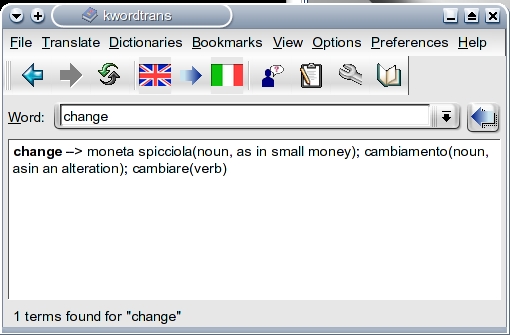
For your own personal and local translation dictionary, you may want to consider taking a look at Ricardo Villalba's wordtrans at wordtrans.sourceforge.net (Figure 4). Compiling wordtrans can be a little tricky, but it isn't a great problem. A visit to TuxFinder (www.tuxfinder.org) turns up quite a number of precompiled packages. I downloaded both the base wordtrans package along with the wordtrans-kde packages in RPM format and installed them. If you are downloading packages, you do need both. You may also find a wordtrans-qt and a wordtrans-web package.
Figure 4. wordtrans, Your Personal Translation Dictionary
By default, wordtrans comes with English, French, Italian, Portuguese and Spanish translation dictionaries, but more can be added. You'll find links to other language files on the wordtrans web site and in the software itself. When you start up Kwordtrans, it may appear as though nothing happened, but look at your system tray in the Kicker panel and you'll see a little gray book icon. Click here and the Kwordtrans interface appears. To select your language of choice, click Dictionaries in the menubar and choose from the list. Choose the direction of your translation (for example, English to Spanish or Spanish to English), type in a word and press Enter.
As I mentioned, you can add additional dictionaries by clicking View on the menubar and selecting Introduction for some links. This not only extends wordtrans' capabilities, but some of the dictionaries available for download are more extensive than the default ones. To add a downloaded language file, click Dictionaries on the menubar, select New and follow the instructions. I downloaded and installed several from www.linuks.mine.nu/dictionary with excellent results.
I'm afraid I do not speak Hungarian, mes amis, but apparently I would have to say az idõ lejárt, which my desktop translator tells me means “time's up”. It is indeed closing time, but there is time enough for another glass of wine before you go. Raise your glass and my faithful waiter, François, happily will take care of you. As you can see, with a little exploration in our Linux kitchens, we may one day be able to communicate effortlessly with the world. Until next time, mes amis, let us all drink to one another's health. A votre santé! Bon appétit! Source: http://www.linuxjournal.com

How To Email Photos To Your Free 25GB Windows Live SkyDrive

While Picasa Web Albums and Flickr are incredibly popular free online photo-storage/sharing services for photos and other files among readers, the limitations of these services’ free accounts might (sooner or later) push you to either upgrade or search for alternative solutions so you won’t have to delete your data.For example, Picasa does integrate well with other Google services, but that also means that all the pictures you upload to Blogger and (the new social messaging tool) Buzz, in addition to Picasa, count toward the 1GB Picasa Web storage limit. As for Flickr, you’re probably already aware that you can only see 200 pictures of your non-pro Flickr collection.

The upgrade prices for extra online storage for photos in Google and Flickr, ($25/year for unlimited storage), aren’t too bad, but as your stream of photos grows every year, so will your premium-account costs. You could get a great deal in photo storage (basically 25GB for $0) in Windows Live Photos thanks to its integration with Windows Live Skydrive, which you already have if you own a Hotmail address or Windows Live ID (signup).

SkyDrive, one of our top 5 free Microsoft Products, will actually give you free online storage for more photos since any file under 50MB will be accepted, but we’ll focus on the SkyDrive-Windows Live Photos kinship as your go-to photo backup/online-storage/sharing solution. Let’s demistify the less-complicated upload option now.

Emailing Pictures To SkyDrive

The email feature is pretty hidden unless you frequently post on your Windows Live Space (the Windows Live equivalent of Blogger), but you can use this regardless of whether or not you’re actively blogging on Spaces. You do need to choose a name for your Space so head to the first option, Choose web address, where you can select a permanent web address.
free online storage for photos
Your Space URL will then be anynameyouwant.spaces.live.com. Now you can unleash the beauty and ease of e-mail publishing by pressing on Options on either the Photos or SkyDrive page, and selecting E-mail publishing.
free online storage for photos
Now enter your email, a secret word and choose a default album for your email uploads. Now you can see where naming your Space will come in handy, otherwise, you could have seen “AwfulLongIDnumber.secretword.albumcode@spaces.live.com.” Each album you have on SkyDrive will be assigned a random code so you’ll get to see all the codes on this page for you to copy to your Contacts in your email or phone. If you decide just to email “yourSpaceName.secretword@spaces.live.com” with your pictures, these will appear on your Space blog and on your Live Photos under the album name of Blog images.
Another tip, your email subject will become the photo’s caption, while the title of the photo will just be your photo’s name on your capturing device, but you can always change the cryptic DSCN0852 title of the photo on the website later.
email photos to skydrive
Email is an easy and speedy way to share your mobile pictures (whether it be one or a couple of photos) or if you check your email often.

Other Ways To Upload To Windows Live Photos/SkyDrive

1. Using The Web Interface: Ideal For A Few Photos

After you log in at the Photos Live page, you’ll see that you can Create (a new) album or Add photos to an existing album. The process gets pretty straightforward, but if you’re on Firefox, you’ll miss the option to drag-and-drop your files (but you can individually choose up to 5 files) that you get in Internet Explorer after installing a plugin. There was this wonderful extension that enabled drag-and-drop for any attachment box but it was last updated in November 2009 so let’s hope the developer makes it FF3.6-compatible soon.
free online storage space
If you’re already on your desktop web browser, heading to the site to upload one or a few pictures will be a breeze (or a nightmare if you upload a lot of photos since this can take such a long time.)

2. Publishing Through Windows Live Writer: Ideal For An Album

The next couple of upload options are more “complicated” in that they will require downloading software, but don’t despair, because for example, the ones featured right next up are among Microsoft’s best free products. The first one is Windows Live Writer, number one in our list of top free Microsoft products, which is a super-easy-to-use and extensible blogging tool.
Writing a blog post at Windows Live Writer is too easy not to do. Our introduction and brief beginner’s guide should clarify more features so let us fast-forward to the main reason for including it here: publishing pictures to your Windows Live Space blog (make sure you select this when you’re setting up your accounts) through this blogging client means that your pictures will be uploaded to SkyDrive under Photos, in a new album with the name of your album title.
free online storage space
If you’re a blogger, this will come in handy. As a WYSIWYG editor, Live Writer makes it very intuitive to insert, upload and publish your photo albums (you can even install this plugin to send and share your blog posts to Twitter).

3. Publishing Through Windows Live Photo Gallery: Ideal for A Few Albums

Windows Live Photo Gallery is an improved version of the built-in Windows Vista photo viewer program (Windows Photo Gallery) that allows basic image editing, tagging, and publishing to Windows Live Photos and Flickr. With the right plugins, you can also publish to other popular sites such as Facebook, YouTube, Picasa, etc.
free online storage space
After you click on Publish and select whether you want to create a new album or add pictures to your existing albums (if you’re logged in with your Windows Live ID), WLPG will upload your pictures with an impressive speed. This process is really ideal if you have a lot of albums to upload. You can get Writer and/or the Live Photo Gallery here (just deselect the Windows Live Products that you don’t need.)

4. Using Third Party Apps: Ideal For Lots of Albums/Folders

There are also two really great third party applications (not developed by Microsoft) that make SkyDrive appear as a virtual drive on your computer so you can easily move and/or copy folders and files. This would be ideal to backup/upload and share lots of files and folders, including pictures. These applications, SDExplorer (formerly known as SkyDrive Explorer) and Gladinet may just make your backing up easier.
Summarizing the different upload options:
  • To upload a few pictures, you could either email your photos to SkyDrive, or upload them on the Windows Live Photos/SkyDrive website.
  • To upload and share a whole album, you can try any of the two featured Windows Live products.
  • To back up many albums/folders from your computer, use either Gladinet or SDExplorer. Source: http://www.makeuseof.com

Free online storage apps


Cloud computing oppens new opportunities for freelancers. One of them is free online file synchronization and storage. Nowadays you can sync your PC files and manage your documents on the go. Share files with your employer or other freelancers. Make an online backup or roll back to previous file version. All these actions are possible with modern online file sharing applications.
Here are the top ten online storage and file sync services that are suitable for freelancing document needs:

1. DROPBOX: Dropbox is a leading folder sync tool. Dropbox gives 2GB free online file storage, which may be increased up to 8GB. Install Dropbox software on PC, Mac, Linux, or mobile devices. Put files you want to store in your Dropbox folder, share a folder with someone, or sync files with other device. I think Dropbox is the easiest file sync software I’ve tried. It’s simple to setup and easy to work with.

2. BOX.NET: Box.net is cloud storage that enables you to store files online and collaborate on them within your team. A simple Box.net account offers 5GB web space for free with mobile apps access and advanced sharing options.

3. ESNIPS: Esnips provides 5GB free online storage for personal use. Upload files and share them publicly or keep documents in private mode. While online, you can search for other users’ public files or install a toolbar to get instant access to an Esnips account. One small disadvantage of the free Esnips account are the multiple ads in your working area.

4. IDRIVE: iDrive is a perfect tool for online backup. If you want to keep a copy of your important folder on a cloud server, then iDrive is what you are looking for. Download iDrive software, run the application and choose folders to sync. In case of a PC crash, you get your files back. There is 5GB free storage quota.

5. IFOLDER: iFolder is a free open source file synchronization program. To enjoy iFolder, you install the software on your server and on client side as well. iFolder is good software for a small team that is comfortable working with their own server. Thus you make sure that only team members have access to your private files. iFolder has necessary setup documentation for administrators.

6. SKYDRIVE:  Windows Live SkyDrive is free online storage. Enriched with Windows Live Mesh, SkyDrive helps to sync PC folders with your web account. Unfortunately, Live Mesh is available for Windows 7 only. Recently SkyDrive was united with Office 365, so you may collaborate and store Word, Excel, PowerPoint documents online.

7. YOUSENDIT: YouSendit offers 1GB free online storage via email attachments or web folders. The drawback is the provision of your credit card/PayPal data at sign-up page. However, it’s not obligatory and a user can enjoy a Lite account without financial details. Besides, there is an option to purchase advanced security features on a pay-per-use basis. This is a great service for sending single documents to coworkers.

8. ZUMODRIVE: ZumeDrive is an online storage that grants 1GB free web space. However, you have a chance to raise your free quota if you pass a quest game. You can share documents, files and photos after Zumo software installation. But ZumoDrive installation looks a bit more complicated than Dropbox. Source: proz.com

Create Batch File to Start or End Window Services


The windows environment can be easily changed by starting or ending various windows services. For example, this method can be used to easily shut down multiple services for a performance boost during game playing.


Update: This article was original crafted for XP; however, I continue to use this technique on my Windows 7 and Windows 8 systems. On more recent Windows systems, the batch file will need to be run as administrator.
Warning: Manipulating windows services can have unpredictable effects on your system. You should create a system restore point before experimenting.
We all want to tweak or windows systems to the extreme to get the quickest, most powerful system possible. Many people will disable multiple window services manually before game playing. What a pain!
Many times people forget what the services do or forget to restart the important ones. Services can be easily changed by creating batch files.
The important commands are the following:
NET START – starts the service
NET STOP – ends the service
For example:
NET STOP "Error Reporting Service"
Output: The Error Reporting Service service was stopped successfully.
Knowing the commands, one can now easily create batch files called something like beforegame.bat and aftergame.bat.
Before.bat would contain all the NET STOP commands to end the nonessential services.
After.bat would be exactly the same except all the NET STOP commands would be replaced with NET START commands to restart all the common services.
A sample of the before.bat file might look something like this:
NET STOP "Error Reporting Service"
NET STOP "FTP Publishing Service"
SET STOP "IIS Admin"
NET STOP "Messenger"

Likewise, the after.bat file might look something like this:
NET START "Error Reporting Service"
NET START "FTP Publishing Service"
SET START "IIS Admin"
NET START "Messenger"

Source: http://www.tech-recipes.com

The copy command under DOS

Syntax:

COPY [/Y|-Y] [/A][/B] [d:][path]filename [/A][/B] [d:][path][filename] [/V]
or
COPY [/Y|-Y] [/A][/B] [d:][path]filename+[d:][path]filename[...] [d:][path][filename] [/V]

Purpose: Copies or appends files. Files can be copied with the same name or with a new name.

Discussion

COPY is usually used to copy one or more files from one location to another. However, COPY can also be used to create new files. By copying from the keyboard console (COPY CON:) to the screen, files can be created and then saved to disk.

The first filename you enter is referred to as the source file. The second filename you enter is referred to as the target file. If errors are encountered during the copying process, the COPY program will display error messages using these names.

Unlike the BACKUP command, copied files are stored in the same format they are found in. The copied files can be used just as you would use the original (whether the copied file is a data file or a program).

COPY can also be used to transfer data between any of the system devices. Files may also be combined during the copy process. 
NOTE:
Files can be copied to the same directory only if they are copied with a new name. If you copy a file to a different directory without specifying a new name, the file will be copied with the same name. If you attempt to copy a file to the same directory without providing a new name, DOS will cancel the copy and display the message

File cannot be copied onto itself

The COPY command was also discussed in Chapter 1, Introduction, in the downloadable book DOS the Easy Way.

Options

/Y - Causes COPY to replace existing files without providing a confirmation prompt. By default, if you specify an existing file as the destination file, COPY will provide a confirmation prompt. (In previous versions of DOS, existing files were simply overwritten.)

/-Y - Displays a confirmation prompt before copying over existing files.

/A - Used to copy ASCII files. Applies to the filename preceding it and to all following filenames. Files will be copied until an end-of-file mark is encountered in the file being copied. If an end-of-file mark is encountered in the file, the rest of the file is not copied. DOS will append an end-of-file mark at the end of the copied file.

/B - Used to copy binary files. Applies to the filename preceding it and to all following filenames. Copied files will be read by size (according to the number of bytes indicated in the file`s directory listing). An end-of-file mark is not placed at the end of the copied file.

/V - Checks after the copy to assure that a file was copied correctly. If the copy cannot be verified, the program will display an error message. Using this option will result in a slower copying process.

Examples

The first filename you enter is the source file; the second file is the target file. To copy the file TEST.DOC from the current directory to drive B (with the same name), enter

copy test.doc b:

To copy the file TEST.DOC to the current directory with the new name, TEST2, enter

copy test.doc test2

To copy and combine (concatenate) the files TEST1.DOC and TEST2.DOC to a new file, TEST3, enter

copy test1.doc+test2.doc b:test3

You can also combine files by using wildcard characters (? and *). To copy all files with a .DOC filename extension on drive C to a new file ALLDOCS on drive B, enter

copy c:*.doc b:alldocs

Other, more complicated, combinations are also possible while copying. For example, to combine all files with a .TXT filename extension with all files that have the same filename and a .DOC extension, copying the newly combined file to a new file on drive B with an .ADD extension, enter

copy *.txt+*.doc b:*.add

In this case, the file TEST.TXT will be combined with the file TEST.DOC resulting in a combined file with the filename TEST.ADD.

ASCII Table and Description

ASCII stands for American Standard Code for Information Interchange. Computers can only understand numbers, so an ASCII code is the numerical representation of a character such as 'a' or '@' or an action of some sort. ASCII was developed a long time ago and now the non-printing characters are rarely used for their original purpose. Below is the ASCII character table and this includes descriptions of the first 32 non-printing characters. ASCII was actually designed for use with teletypes and so the descriptions are somewhat obscure. If someone says they want your CV however in ASCII format, all this means is they want 'plain' text with no formatting such as tabs, bold or underscoring - the raw format that any computer can understand. This is usually so they can easily import the file into their own applications without issues. Notepad.exe creates ASCII text, or in MS Word you can save a file as 'text only'

Ascii Table

Extended ASCII Codes

EBCDIC and IBM Scan Codes

Google Translate from command line

translate(){ wget -qO- "http://ajax.googleapis.com/ajax/services/language/translate?v=1.0&q=$1&langpair=$2|${3:-en}" | sed 's/.*"translatedText":"\([^"]*\)".*}/\1\n/'; }

2010-03-08 03:15:48
Usage:translate <phrase> <source-language> <output-language> Example:translate hello en es
See this for a list of language codes: http://en.wikipedia.org/wiki/List_of_ISO_639-1_codes

translate() { lng1="$1";lng2="$2";shift;shift; wget -qO- "http://ajax.googleapis.com/ajax/services/language/translate?v=1.0&q=${@// /+}&langpair=$lng1|$lng2" | sed 's/.*"translatedText":"\([^"]*\)".*}/\1\n/'; }
allow multiword translations
 
cmd=$( wget -qO- "http://ajax.googleapis.com/ajax/services/language/translate?v=1.0&q=$1&langpair=$2|${3:-en}" | sed 's/.*"translatedText":"\([^"]*\)".*}/\1\n/'; ); echo "$cmd"
2010-03-13 01:09:00
translate <phrase> <source-language> <output-language> works from command line
 
wget -U "Mozilla/5.0" -qO - "http://translate.google.com/translate_a/t?client=t&text=translation+example&sl=auto&tl=fr" | sed 's/\[\[\[\"//' | cut -d \" -f 1
tl = target language (en, fr, de, hu, ...);
you can leave sl parameter as-is (autodetection works fine)
substitute "example" with desired string;
 
curl -s -A "Mozilla" "http://translate.google.com.br/translate_a/t?client=t&text=Hi+world&hl=pt-BR&sl=en&tl=pt&multires=1&ssel=0&tsel=0&sc=1" | awk -F'"' '{print $2}'
Translates a phrase from English to Portuguese
Translates a string from English to Portuguese by using google translator web service. Source: http://www.commandlinefu.com

Windows Key Shortcuts

These shortcuts utilize the Windows Key which is located at the lower left hand corner and, the lower right hand corner of your keyboard between the Ctrl and Alt keys. If it is not there, then you do not have a Windows keyboard: Ctrl Windows Key Alt

The keyboard image effects that you see above and below are being controlled through an external .css (Cascading Style Sheet) file. These are not actual images, but a carefully thought out list of CSS attributes that gives the appearance of a key on a Windows keyboard.
  1. Windows Key + E Opens a new Explorer Window. Probably one of the hottest Windows keyboard shortcuts. This one gets a lot of hoorahs!
  2. Windows Key Displays the Start Menu.
  3. Windows Key + D Minimizes all windows and shows the Desktop.
  4. Windows Key + D Opens all windows and takes you right back to where you were.
  5. Windows Key + F Displays the Find all files dialog box.
  6. Windows Key + L Lock your Windows XP computer.
  7. Windows Key + M Minimizes all open windows.
  8. Windows Key + Shift + M Restores all previously open windows to how they were before you Minimized them.
  9. Windows Key + R Displays the Run command.
  10. Windows Key + F1 Displays the Windows Help menu.
  11. Windows Key + Pause/Break Displays the Systems Properties dialog box.
  12. Windows Key + Tab Cycle through the buttons on the Task Bar.
  13. Windows Key + U Displays the Utility Manager with accessibility options; Magnifier, Narrator and On-Screen Keyboard.
  14. Alt + Tab Toggle (switch) between open windows.